How to Name Photo Files: The Simple System That Works
Henk van den Berg
A folder by year gets you close. A good file name or a few keywords get you to the exact photo. If your files are still called IMG_4821.jpg, learning how to name photo files with a clear convention, plus some basic metadata, will make your collection searchable on any computer, in any app, for decades. Here is how I approach both.
Two Ways to Make Photos Searchable
You can store information about a photo in two places. The first is the file name, which every computer and phone can read. The second is the metadata inside the file: the date, the title, the caption, and keywords that photo software can search. Each has strengths, and many professionals use both.
If You Use Apple Photos
Apple Photos works differently from a folder of files. The original files sit hidden inside the Photos library, and the app does not let you rename them. That is by design, and you should never try to change files inside the library directly.
In Apple Photos, all the information goes into the photo itself: a title, a caption with the story, keywords, and the names of the people Photos recognizes in People and Pets. On a Mac, open the Info window to add them. Since iOS 27 you can add keywords on the iPhone too. For order, use albums instead of folders: a folder in the sidebar for each year, with an album for each event inside it.
File names only come into play when you export. In the export settings, Photos can name the new files after your titles, so a well-titled library turns into well-named files whenever you need them. The naming advice below is for photos you keep as files on a computer or an external drive.
How to Name Photo Files: A Convention That Lasts
Start every file name with the date in year-month-day order. That one choice makes photos sort correctly in every folder on every system. After the date, add a short description, using underscores or hyphens instead of spaces:
Keep the descriptions short and consistent. Use the same spelling for the same people and places every time, and end with a number so that photos from the same event never collide. For scanned prints where you only know the year, use January 1 as a stand-in for the month and day, for example 1960-01-01_Lake_house_003.jpg, so the photo still sorts into the right year. Mention in the caption that the date is approximate. Holiday photos can often be dated exactly: Christmas morning is 1960-12-25, and a calendar from that year tells you the date of Thanksgiving.
File names have one big advantage: they travel with the file and work in any app, on any device. Their limit is space. A file name cannot hold the names of eight people at a birthday party or the story behind the picture.
Adding Metadata: Titles, Captions, and Keywords
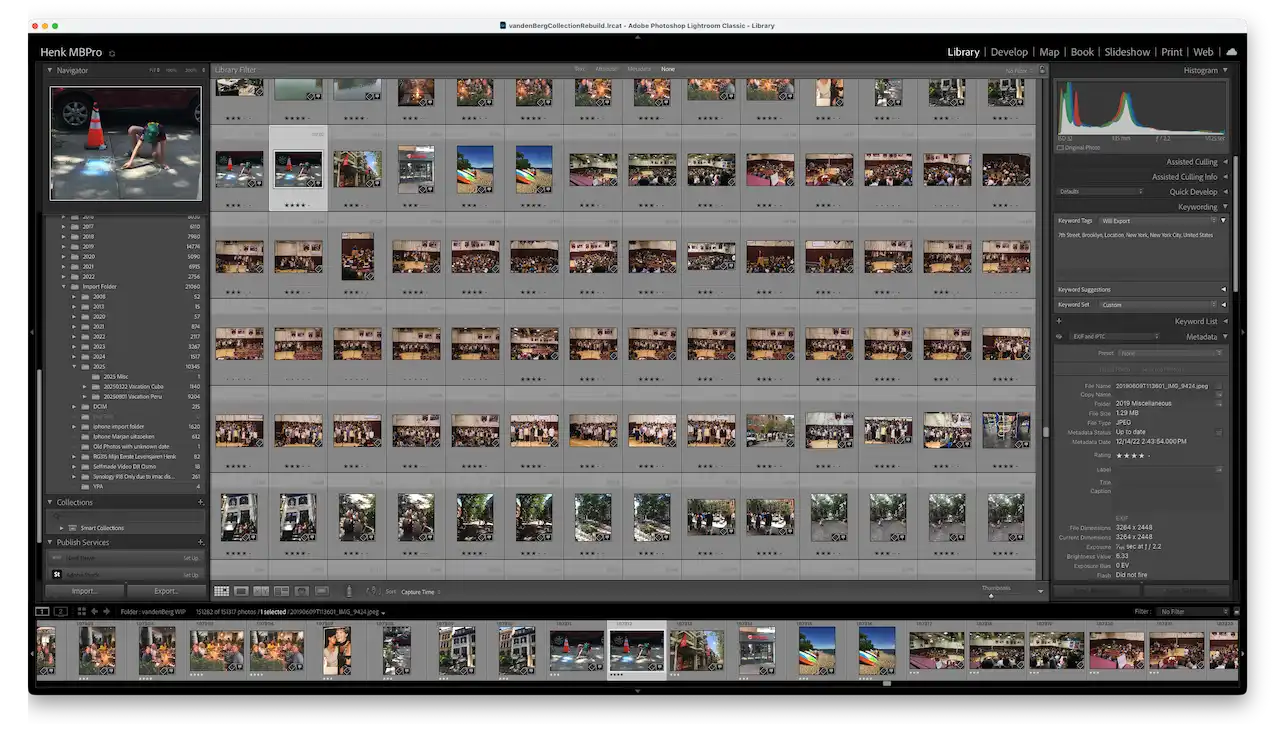
Keywords and metadata panels in my own Lightroom Classic catalog
Metadata is information stored inside the photo. The fields worth filling in are:
Date taken, corrected for scans and for cameras that had the wrong clock
A short title, such as “Emma’s graduation”
A caption with the story: who, where, and why it mattered
Keywords for people, places, and events, so one photo can be found several ways
A star rating for your favorites
Captions are where the family history lives. A name and a sentence written today can save your grandchildren hours of guessing later.
Which Approach Should You Use?
Rely mostly on file names if you move files between many devices, use simple photo viewers, or want a system that does not depend on any app. Rely mostly on metadata if you work in one photo program such as Apple Photos or Lightroom and want rich, flexible search.
My own recommendation for most families is the combination: a simple date-based file name, plus names, captions, and keywords inside the photo. The file name keeps things in order everywhere, and the metadata makes them findable.
Make Sure Your Metadata Travels With the Photo
This is the part most people miss. Some apps store your keywords and captions only in their own database, not in the photo file. If you switch apps or copy the files elsewhere, that work stays behind. Lightroom Classic and Adobe Bridge can write the information into the files or into small sidecar files next to them, in a standard format other programs read. Apple Photos keeps it in its library unless you export the originals with the option to save that information as XMP files. Google Photos exports dates and captions as separate files that other apps ignore unless they are merged back in.
Before you invest hours in tagging, check how your app exports that work.
Tools to Name Photo Files and Add Tags
For renaming many files at once, Windows users can use PowerRename, part of Microsoft’s free PowerToys. On a Mac, Finder can rename a whole selection of files (files in folders, not photos inside Apple Photos): select them, right-click, and choose Rename. Adobe Bridge, which is free, does batch renaming on both systems and edits metadata as well.
For metadata, Adobe Lightroom Classic is the tool I use myself. Adobe Bridge is a free alternative, Photo Mechanic is popular for large collections, and ExifTool is a free command-line tool for people comfortable with technical work. I compare the main apps in my review of the best photo organizing apps.
Consistency Beats Perfection
In every collection I have worked on, the systems that last are the simple ones applied the same way every time. A half-finished naming scheme helps less than a basic one used everywhere. Write your convention down and keep it short. Then name photo files the same way every time new ones come in.
Naming and tagging are step four of my system for taming digital photo chaos. If you would rather have the dates, names, and captions done for you, especially on scanned family photos, contact me for a free consultation.
Written by Henk van den Berg, Certified Photo Manager based in Brooklyn. I help families digitize and organize a lifetime of photos, slides, and home videos, then set up a system they can keep using on their own.