Best Photo Organizing Apps in 2026: An Honest Comparison
Henk van den Berg
Most families I work with have thousands of photos spread across phones, laptops, old hard drives, and cloud accounts. The right photo organizing app turns that pile into a library you can search in seconds. The wrong one locks your memories into a system you will struggle to leave. Almost every app on this list has changed since I first wrote this comparison, so I went back through each one as it stands in fall 2026: what it does well, where the trade-offs are, and who it suits.
Photo Organizing Apps Compared at a Glance
App
Works on
Price
Best for
Apple Photos
Mac, iPhone, iPad
Free (iCloud storage extra)
Families in the Apple world
Google Photos
Android, iPhone, web
15 GB free, then paid storage
Mixed Android and iPhone families
Microsoft Photos
Windows 11
Free
Simple browsing on a PC
Adobe Lightroom Classic
Mac, Windows
Subscription
Serious hobbyists who also edit
Mylio Photos
Mac, Windows, iPhone, Android
Free version; paid plans from $240 a year
One private library across all devices
Peakto
Mac
Subscription or lifetime license
Photos spread across several apps and drives
ACDSee Photo Studio
Windows (Mac edition available)
One-time purchase
PC users who want to avoid subscriptions
Adobe Bridge
Mac, Windows
Free with an Adobe account
Free metadata and batch renaming
How to Choose the Right Photo Organizing App
Before you compare features, ask yourself a few practical questions. These are the ones I go through with clients:
Which devices does your family use? An app that only runs on a Mac is no help to a spouse on Windows.
Do you want your photos in the cloud, on your own computer, or both?
Will you pay a subscription, or do you prefer a one-time purchase?
Do you need face recognition and search by what is in the photo, or are folders and dates enough?
If you ever switch apps, will your captions, dates, and keywords come with you?
That last question matters more than most people realize. The work you put into names, dates, and captions is the most valuable part of an organized library. An app that keeps that information locked inside its own database makes a future move painful.
The Best Photo Organizing Apps in 2026
Apple Photos (Mac, iPhone, iPad)
Apple Photos is where most of my clients’ photos already live, and the 2026 updates made it a better organizer. With iOS 27 and macOS 27, released in September 2026, Photos gained custom keywords and star ratings, a faster search index on the Mac, and a Utilities section with filters such as Captured by Me, which shows only the photos you took yourself. Shared albums now keep full resolution, and family members on Android or Windows can join and add photos through iCloud.com.
People and Pets recognition, Memories, and search by what is in a photo all work well. On the Mac you can also correct dates, locations, titles, and captions, which is essential for scanned prints.
The trade-offs: it only runs on Apple devices, and the new macOS 27 no longer supports older Intel Macs. Your keywords and captions only leave the app if you export the unmodified originals with the option to write the information to separate XMP files. Apple Photos suits families who use iPhones and Macs and want an organizer that comes free with them.
Google Photos (Android, iPhone, Web)
Google Photos is the obvious choice for families with a mix of Android phones and iPhones, because it works the same on both and in any web browser. Its search is excellent, and Ask Photos lets you search in plain language, such as “Grandpa at the beach in the 1990s.” Face groups, shared albums, and non-destructive editing are all built in.
The trade-offs: the free 15 GB is shared with Gmail and Google Drive, so most families end up paying for storage. Several AI features depend on your country or a paid plan. The biggest catch for me is leaving: when you download your library with Google Takeout, dates, locations, and descriptions come out in separate files next to each photo, and other apps ignore them unless someone merges them back. Google Photos suits cloud-first families who want easy sharing and strong search.
Microsoft Photos (Windows 11)
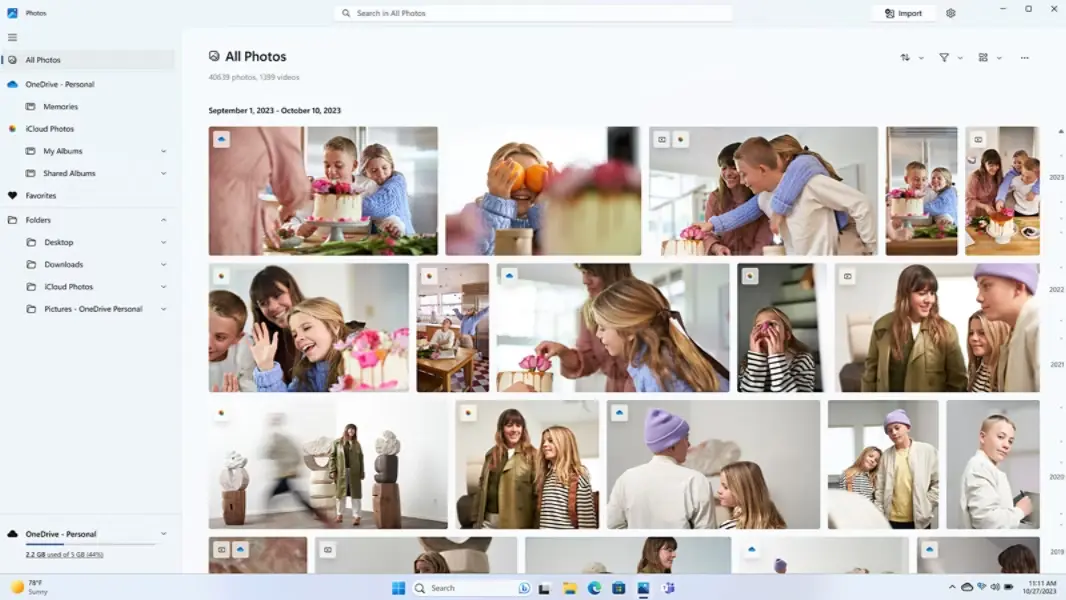
Microsoft Photos ships free with Windows 11 and covers basic photo organizing Used with permission from Microsoft
Microsoft Photos comes free with Windows 11. It shows your local folders, OneDrive, and even iCloud Photos (with the iCloud app installed) in one gallery. It can find text inside photos, and on newer Copilot+ PCs it adds search by description and AI editing tools.
The trade-offs: there is still no face grouping in the Photos app itself. Microsoft is testing it in a separate OneDrive Photos app, and only for photos stored in OneDrive. Metadata editing is basic, and there is no batch renaming. Microsoft Photos suits Windows users who want a free way to browse and lightly edit their photos.
Adobe Lightroom Classic (Mac and Windows)
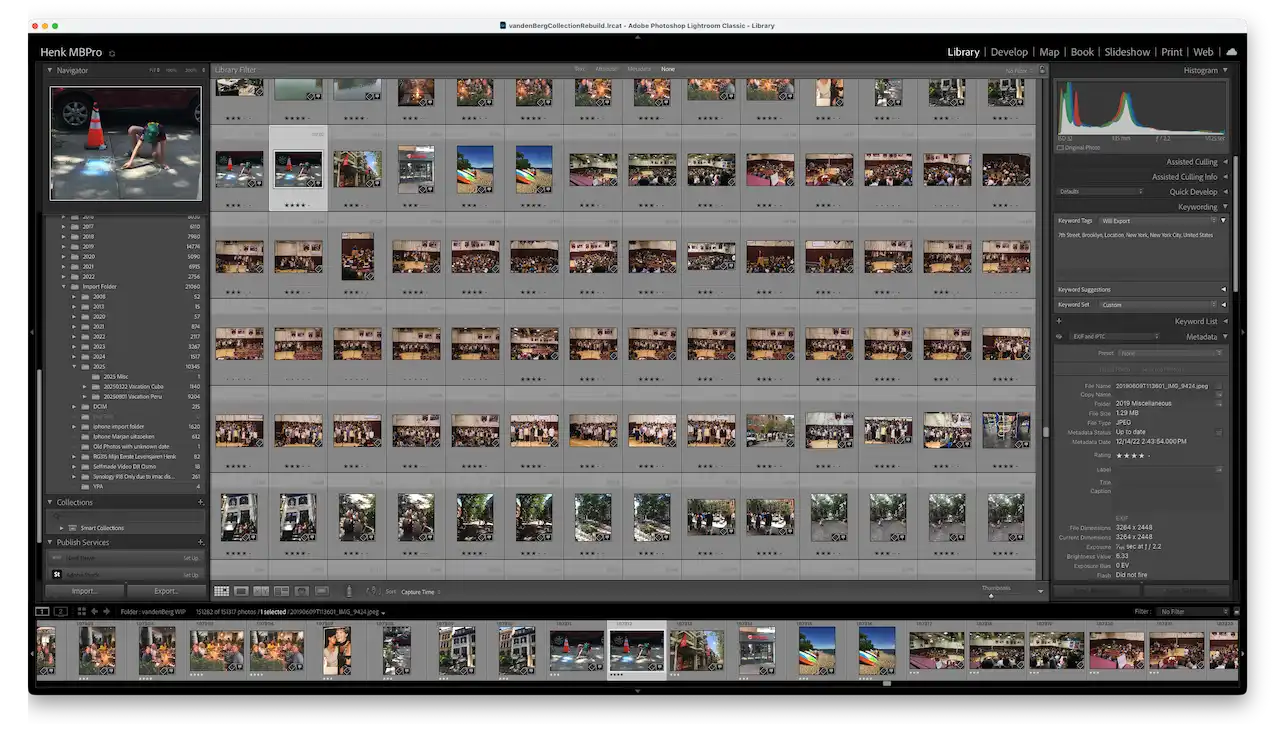
The Lightroom Classic Library module in my own workspace folders by year keywords and metadata in one place
Lightroom Classic is the tool I use in my own work, and it remains the standard for organizing and editing in one place. Its catalog handles very large collections, keywords and captions are written in a format other software can read, and People view recognizes faces. Recent versions added duplicate detection across folders (including renamed files), assisted culling that scores sharpness and open eyes, and keywords that sync with Lightroom on your phone.
The trade-offs: it is subscription only, starting with the Photography plan at $19.99 a month. It has a real learning curve, and search by what is in a photo is only available in the cloud version of Lightroom, not in Classic. Lightroom Classic suits serious hobbyists who want professional organizing and editing and do not mind a subscription.
Mylio Photos (Mac, Windows, iPhone, Android)
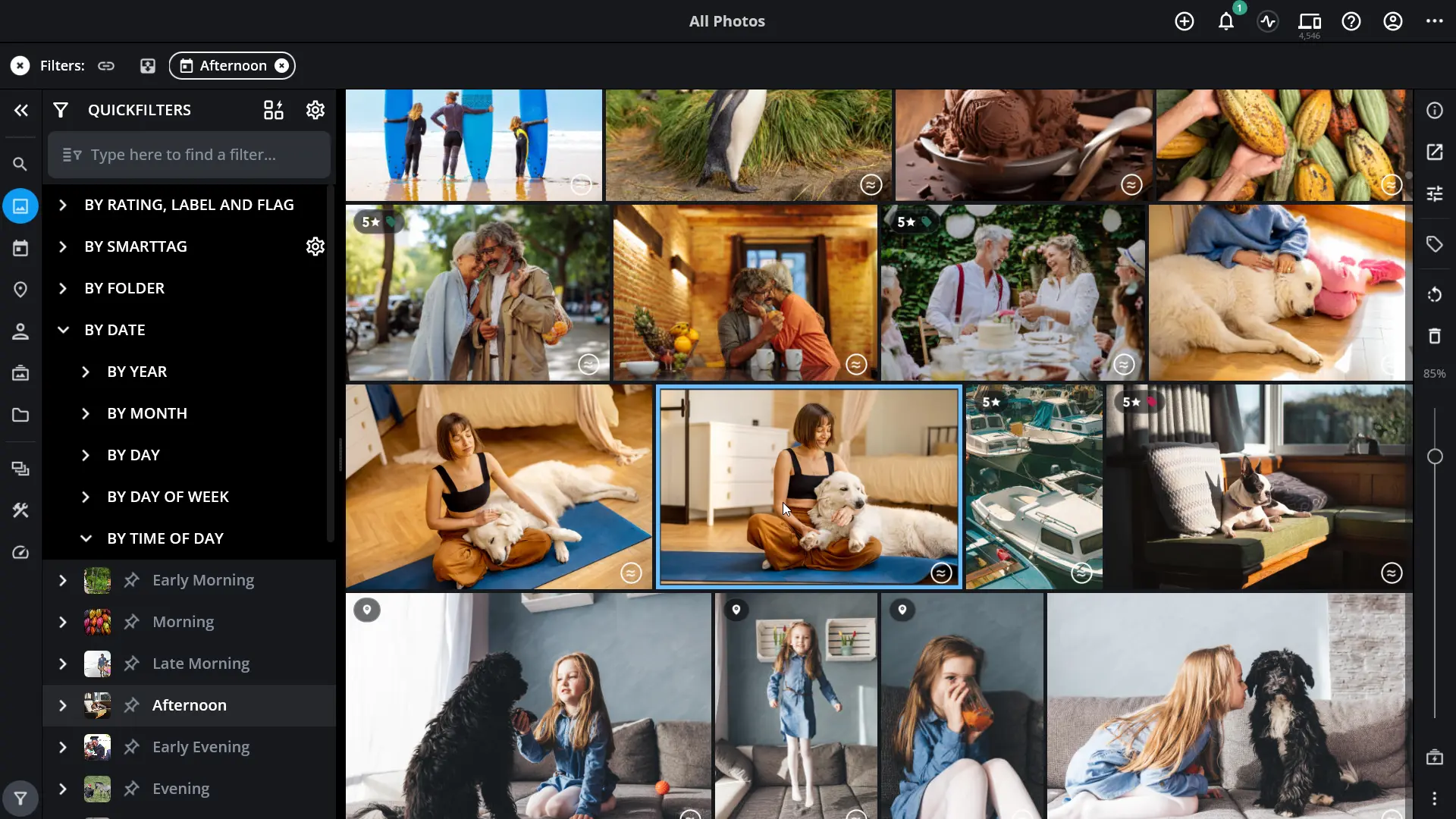
Mylio Photos QuickFilters narrow a large library by date people ratings and smart tags Image courtesy of Mylio
Mylio keeps one library in sync across your computers, phones, and tablets without requiring a cloud service. Photos stay on your own devices, and encrypted cloud storage is optional. It has face recognition, search that reads text inside photos, a calendar view of your whole life in pictures, and tools that find duplicates and flag blurry or closed-eye shots.
The trade-offs: the price changed a lot in 2025. Syncing between devices and duplicate removal now need a paid plan, which starts at $240 a year for one person, with Duo and Family plans for households. There is a free version for organizing on a single device. Setup takes some thought to get right. Mylio suits families who value privacy and want one library on every device.
Peakto (Mac Only)
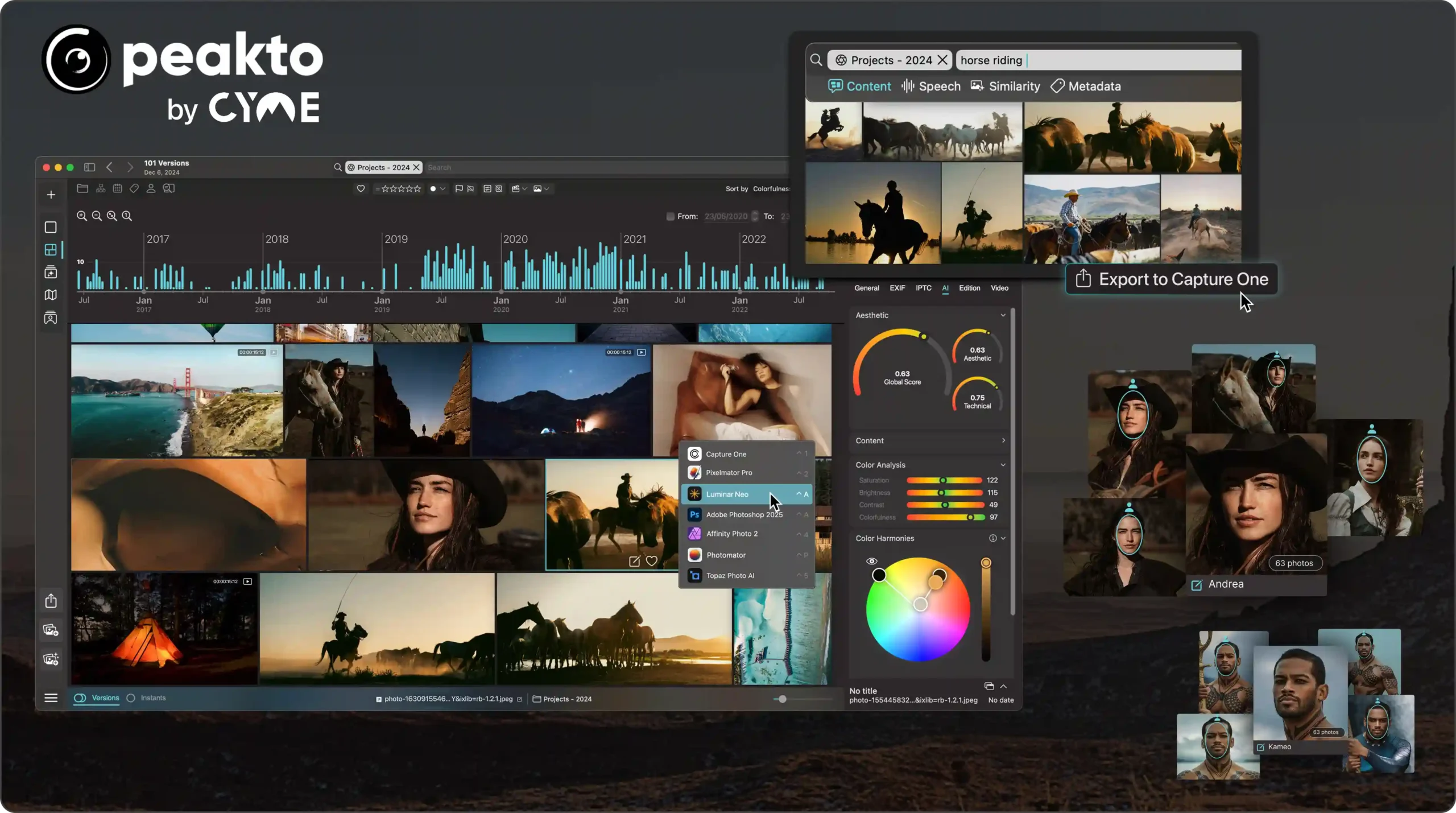
Peakto by CYME connects photo libraries from different apps into one searchable hub Image courtesy of CYME
Peakto solves a specific problem: photos scattered across Apple Photos, Lightroom, Capture One, Luminar, and plain folders on several drives. It reads all of them without moving or copying a single file and lets you search everything in one place, in plain language, even when a drive is disconnected. It also recognizes faces and finds exact and near duplicates across catalogs without deleting anything on its own. The 2025 update added secure web access, so you can browse and share your library away from home.
The trade-offs: it runs only on a Mac, it is mainly sold as a subscription (a lifetime license is also available), and it is a viewer and organizer, not an editor. Peakto suits Mac users whose photos live in too many places.
ACDSee Photo Studio (Windows, with a Mac Edition)
ACDSee is one of the few strong organizers you can still buy outright. The 2027 Windows editions (Home, Professional, and Ultimate) cost $69.99 to $179.99 once. You can browse your folders directly, and the app includes face recognition, automatic AI keywords, hierarchical categories, a duplicate finder, and grouping of similar images. The Mac edition, Photo Studio for Mac 26, added face recognition and AI keywords this year.
The trade-offs: the interface is busy, the Mac edition has fewer features than the Windows versions, and the generative AI editing tools need credits bought separately. ACDSee suits PC users who want serious organizing without a subscription.
Adobe Bridge (Mac and Windows)
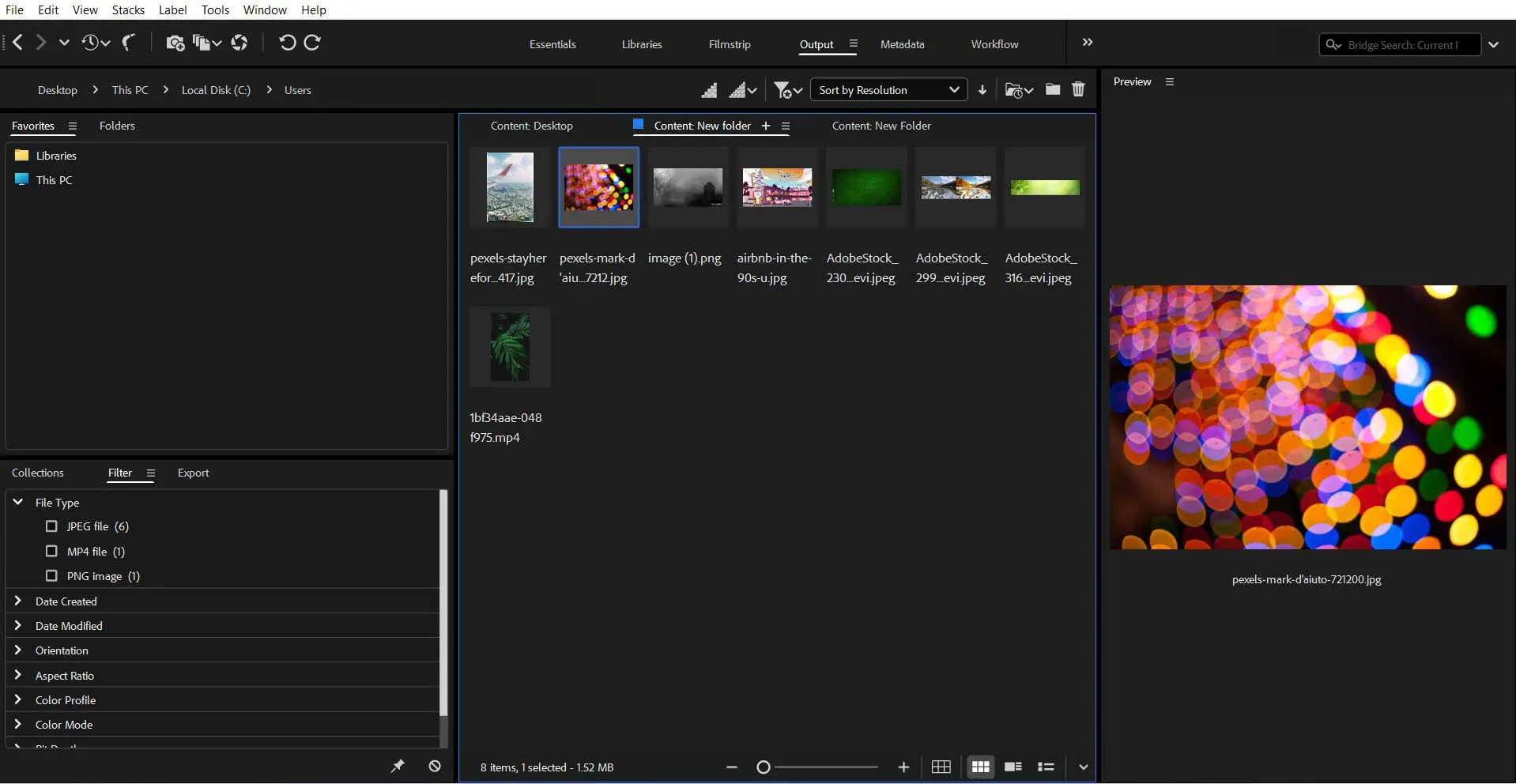
Adobe Bridge is a free tool for browsing and organizing photos videos and design files
Adobe Bridge is free with an Adobe account, and it works directly on your folders. It is excellent for adding keywords, captions, and dates, renaming hundreds of files at once, and building collections. Everything you add is written in a standard format other programs can read.
The trade-offs: it has no face recognition, no AI search, and no photo editing without a paid Adobe plan. Bridge suits people who want free, precise control over file names and metadata.
Which Photo Organizing App Do I Recommend?
There is no single best app. If your family uses iPhones and a Mac, start with Apple Photos, because it is free and now much stronger. If your family mixes Android and iPhone, Google Photos is the easiest common ground, as long as you plan for how you would get your photos back out. If you want privacy and one library on every device, look at Mylio. If you want professional control and will edit your photos, Lightroom Classic is still the standard. And if your photos are already scattered across several apps on a Mac, Peakto can bring them together before you decide where they should finally live.
Whichever you choose, the app only works as well as the system behind it. Clear folders, consistent dates, and names on the faces matter more than any single feature. If you are starting from a large backlog, my guide to taming digital photo chaos walks through that system step by step, and the reason it is worth the effort is the same reason I organize photos for a living: they keep your cherished memories findable for the next generation.
Need Help Choosing or Setting Up?
Picking the app is the easy part. Moving years of photos into it without losing dates, names, or captions is where most people get stuck. As a Certified Photo Manager, I help families choose the right setup, bring scattered libraries together, and leave them with a system they can keep using on their own. Contact me for a free consultation, or download my free guide, Start Organizing Your Photos.
Written by Henk van den Berg, Certified Photo Manager based in Brooklyn. I help families digitize and organize a lifetime of photos, slides, and home videos, then set up a system they can keep using on their own.